Why the Format You Choose Actually Matters
Most people treat PDF, Word, and plain text as interchangeable — just different ways to hold the same words. They're not. Each format makes very different tradeoffs between portability, editability, and compatibility, and choosing the wrong one creates real friction: documents that won't open, text that can't be copied, formatting that breaks on different devices.
Understanding what each format is actually designed for takes about five minutes and saves hours of frustration.
The Three Formats — What They're Actually For
PDF — Portable Document Format
PDF was designed by Adobe in the early 1990s for one specific purpose: to make a document look identical on every device, regardless of what software, fonts, or operating system the reader has. It locks the layout completely — every element is positioned precisely on the page.
- • Sharing final documents (CVs, reports, invoices)
- • Content that must look identical everywhere
- • Archiving documents long-term
- • Legal and official submissions
- • Documents you need to edit frequently
- • Copying text to use elsewhere
- • Collaboration with tracked changes
- • Machine-readable or processed text
DOCX — Microsoft Word Document
DOCX is a living document format — designed for writing, editing, reviewing, and collaborating. Unlike PDF, the layout is flexible and reflows based on the viewer's settings. It stores not just text but also styles, comments, tracked changes, tables, images, and embedded objects.
- • Documents being actively written or edited
- • Templates and contracts that get customised
- • Collaborative work with comments or track changes
- • Reports where content changes regularly
- • Final distribution (layout varies by viewer)
- • Long-term archiving (format versions change)
- • Sending to people without Word or Google Docs
- • Consistent rendering on all devices
TXT — Plain Text
Plain text is the most basic format possible — just characters, no formatting, no layout, no styling. It's readable by every device, every application, and every programming language ever created. What it lacks in presentation it more than makes up for in universal compatibility.
- • Pasting into other tools (AI, translators, summarisers)
- • Code, scripts, and configuration files
- • Data that will be processed programmatically
- • Maximum compatibility across every system
- • Documents with visual design or layout
- • Content with tables, images, or formatting
- • Anything that needs to look professional
- • Headers, footnotes, or document structure
When You Need to Convert Between Formats
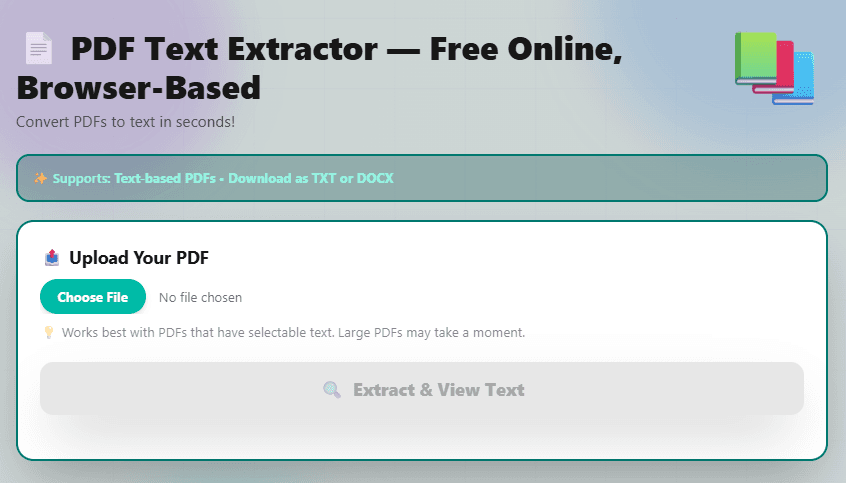
Most conversion problems come down to one scenario: you have a PDF but need the text in a usable form. Here's when each conversion direction makes sense:
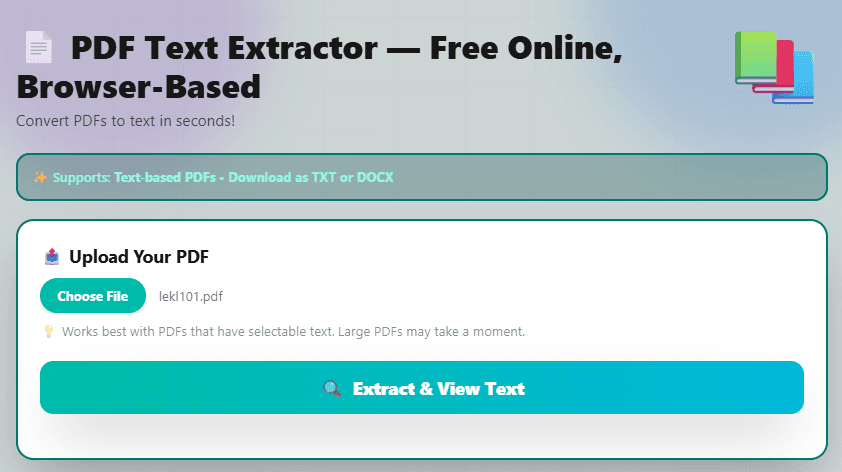
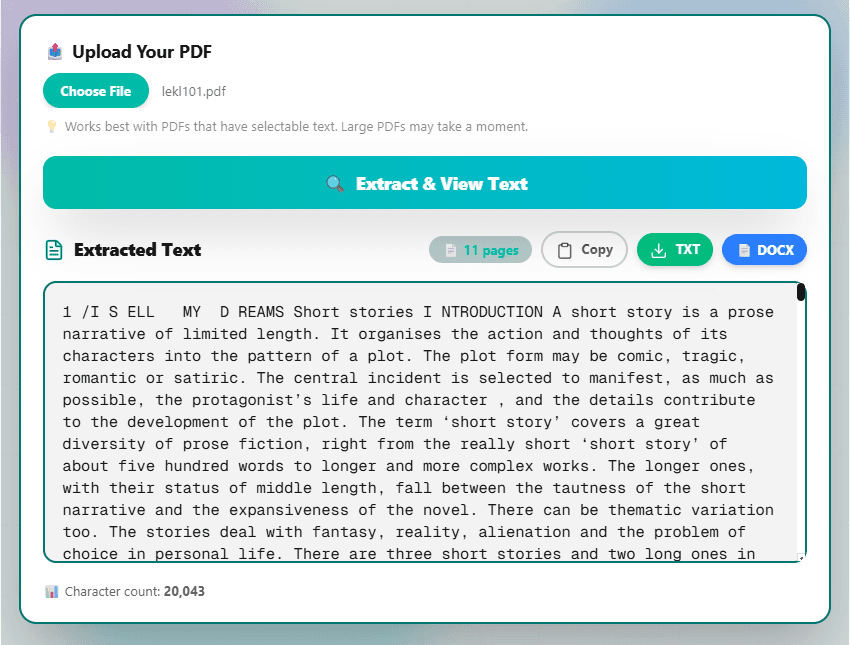
Privacy note: The FlexoTools PDF extractor works entirely in your browser. Your file is never uploaded to any server — the text is extracted locally on your device. This matters for sensitive documents like contracts, medical records, or financial reports.
Why PDF Text Is Hard to Copy Manually
Most people's first instinct when they need text from a PDF is to select it and copy-paste. This works sometimes — but fails in several common situations:
Quick Decision Guide — Which Format to Use
| Your situation | Use this format |
|---|---|
| Sending a final CV or resume | |
| Writing and editing a report | DOCX |
| Pasting into ChatGPT or a summariser | TXT |
| Submitting a legal or official document | |
| Sharing a template someone will edit | DOCX |
| Feeding data into a script or program | TXT |
| Printing a brochure or flyer | |
| Translating a document | TXT |
| Collaborating with tracked changes | DOCX |
Extract Text from Your PDF — Free, No Signup
Upload your PDF and get the full text in seconds. Copy to clipboard, download as TXT, or save as a Word document. Your file never leaves your device.
📋 Open PDF Text Extractor