Why Most People Get Disappointing Summaries
The most common complaint about AI summarizers is that the output is too vague — it restates the obvious, misses the key point, or produces something so generic it could apply to anything. This almost always comes down to one of two problems: the wrong type of input, or the wrong output mode for the task.
An AI summarizer doesn't understand your document the way a human editor would. It identifies patterns in language and extracts what statistically appears most significant. This works brilliantly on well-structured, information-dense content — and poorly on content that's conversational, highly contextual, or relies on what's left unsaid.
Content That Summarizes Well
These input types consistently produce accurate, useful summaries:
Content That Summarizes Poorly
Knowing what not to summarize saves you from bad outputs and wasted requests:
Choosing the Right Output Mode for Your Task
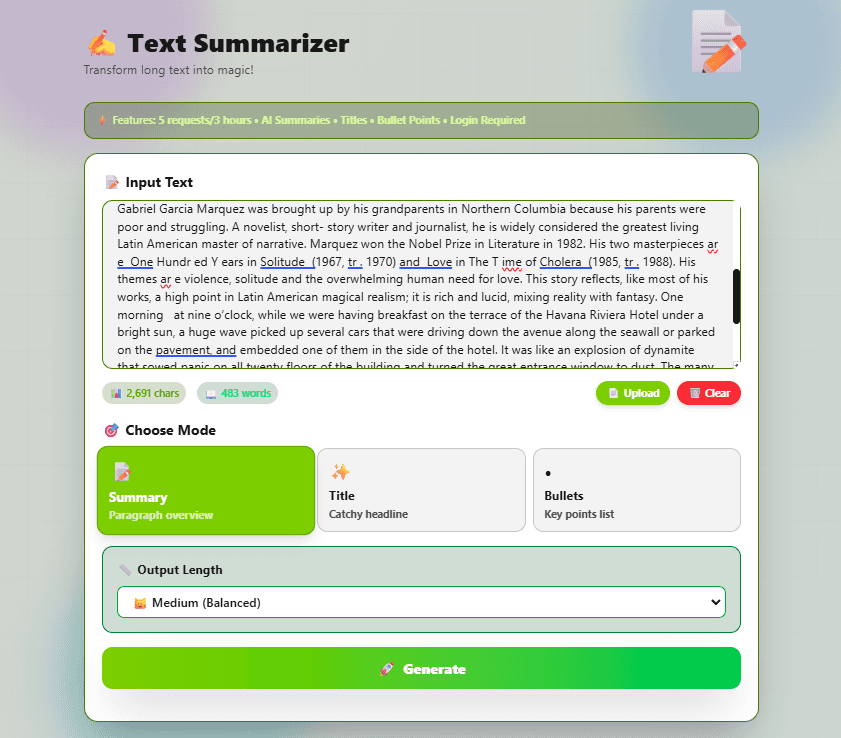
The three modes produce very different outputs from the same input. Picking the wrong one is the second most common reason for a disappointing result:
- ✓You need a concise version to share or reference later
- ✓You're deciding whether an article is worth reading fully
- ✓You want to quickly understand a long report
- ✓You're preparing notes or a briefing
- ✓You're writing a blog post and need a headline
- ✓You need a subject line for an email
- ✓You're titling a presentation slide
- ✓You want a one-line description of a document
- ✓You're extracting action items from meeting notes
- ✓You need key facts from a research paper
- ✓You're creating a quick-reference list from a long doc
- ✓You want to scan the main arguments before reading fully
5 Real Workflows Where Summarizers Save the Most Time
Research triage — decide what's worth reading
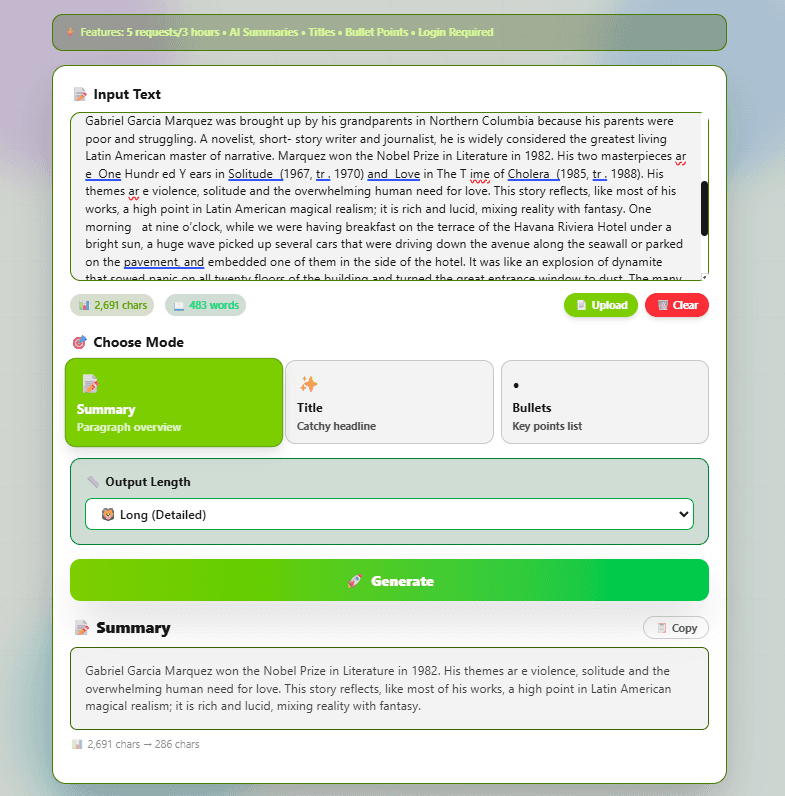
When you have 10 articles on a topic and time to read 3, paste each one into Summary mode with Short length. Read the summaries first. You'll immediately identify which 3 contain unique information and which 7 are largely repeating the same points.
Meeting notes → action items
After a meeting, paste your raw notes into Bullets mode. The output pulls out the decisions and next steps as a clean list. Copy that list into your task manager or reply email. What used to take 10 minutes of post-meeting cleanup takes 30 seconds.
Blog drafting — article → headline
Paste your finished article body into Title mode. Generate 3–4 headline options by running it multiple times. Use these as starting points — AI-generated headlines are often stronger than the ones you'd write from scratch because they're pattern-matched to what performs well online.
Understanding long PDFs without reading every page
Extract text from a long PDF using the FlexoTools PDF Extractor, then paste it into the summarizer in sections. For a 50-page report, summarise each chapter separately in Bullets mode, then paste all the bullet summaries together and run one final Summary pass.
Email drafting — summarise the thread before replying
Copy the full text of a long email thread and run it through Summary mode before composing your reply. This is particularly useful if you've been cc'd on a conversation you haven't followed closely — the summary tells you what decisions have been made and what's being asked of you.
About your data: The FlexoTools Text Summarizer sends your text to an AI model to generate the summary. The text is used only to produce the output and is not stored or used for training. Avoid pasting confidential passwords, personal data, or sensitive financial information into any AI-powered tool.
Summarize Your Text — Free, AI-Powered
Paste any article, report, or notes and get an instant summary, headline, or bullet point list. No signup required to try it — 5 free requests every 3 hours.
🚀 Open Text Summarizer